 puh.gg
Two-factor authentication
Ask for a code from an authenticator app on every sign-in. It stops most account takeovers.
Settings → Sign-in
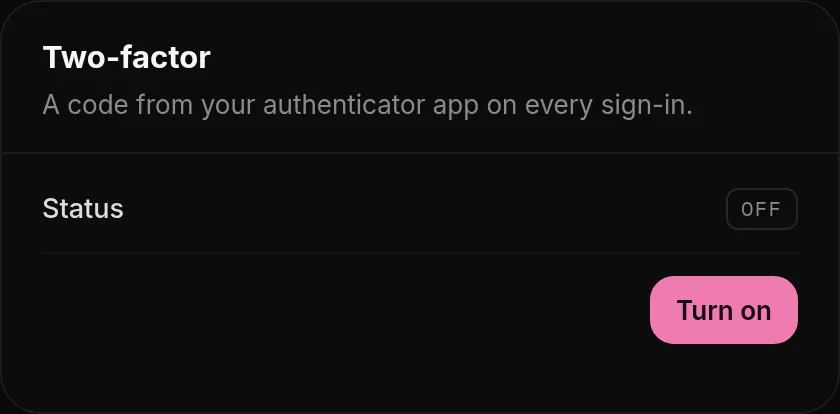
- Open Settings.
- Under Two-factor, click Turn on.
- Scan the QR code with your authenticator app, for example Google Authenticator or 1Password, and enter the 6-digit code.
- Save the 10 backup codes somewhere safe. They are shown only once, and each one works once if you lose your phone.
From now on, signing in asks for a code from the app after your password.
Lost your phone? Sign in with one of your backup codes instead of the app code, then set up two-factor again on your new phone.
To turn it off, click Turn off and confirm with your password.
Which app to use
Any app for time-based codes (TOTP) works: Google Authenticator, Microsoft Authenticator, Authy, 1Password, Bitwarden or the passwords app on your iPhone.
Code not accepted? Codes change every 30 seconds and depend on the time on your phone. Turn on automatic date and time in your phone's settings and try the newest code.
Was this helpful?Updated Oct 22, 2026