 puh.gg
Passkeys
Sign in with Face ID, Touch ID, Windows Hello or a security key, no password needed.
Settings → Sign-in
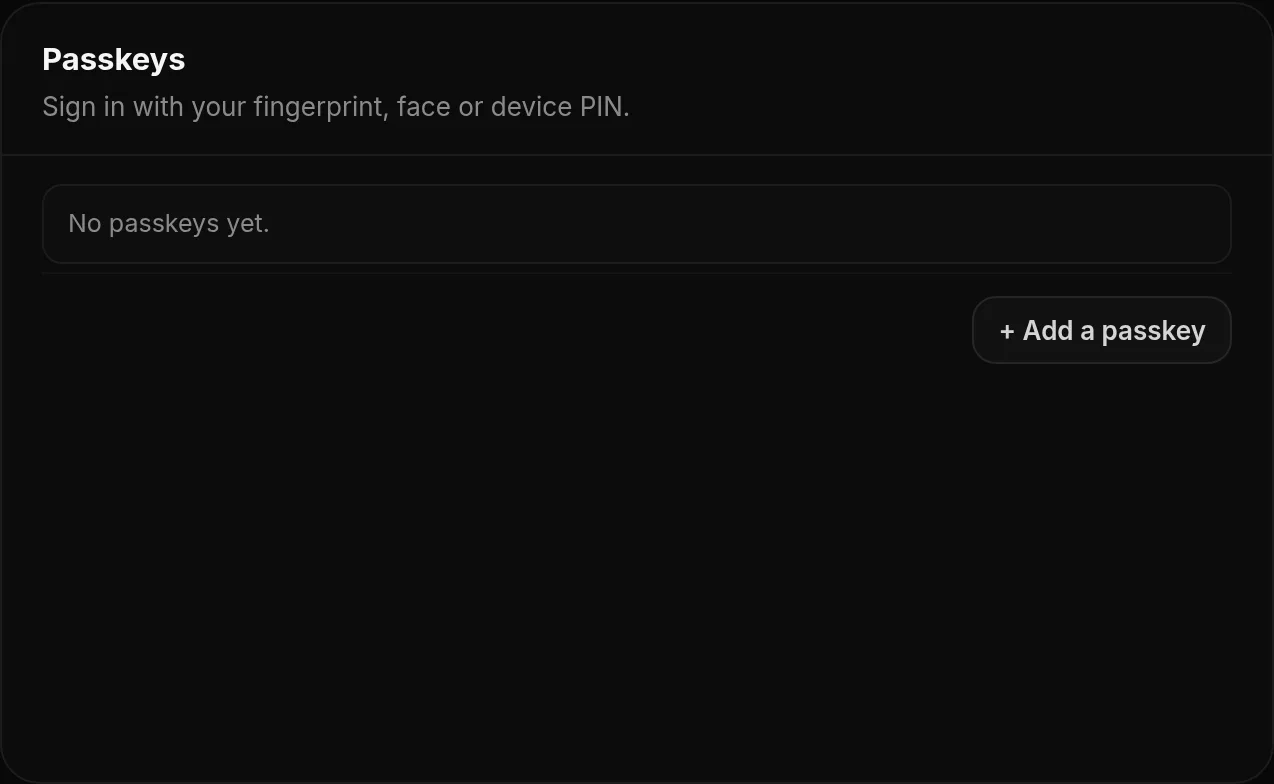
- Open Settings and go to Passkeys.
- Add a passkey and confirm with your fingerprint, face or device PIN.
- Next time, choose to sign in with a passkey on the login page.
You can add a passkey on each device you use and remove ones you no longer need. Your password keeps working as well.
Why passkeys are safer
A passkey never leaves your device and only works on puh.gg, so it cannot be typed into a fake login page. Passkeys saved in iCloud Keychain, Google Password Manager or a password manager sync to your other devices.
Was this helpful?Updated Oct 22, 2026