 puh.gg
Connect your Discord account
Link Discord to get your roles, badges, Rich Presence, giveaways and your Discord avatar.
Settings → Connections
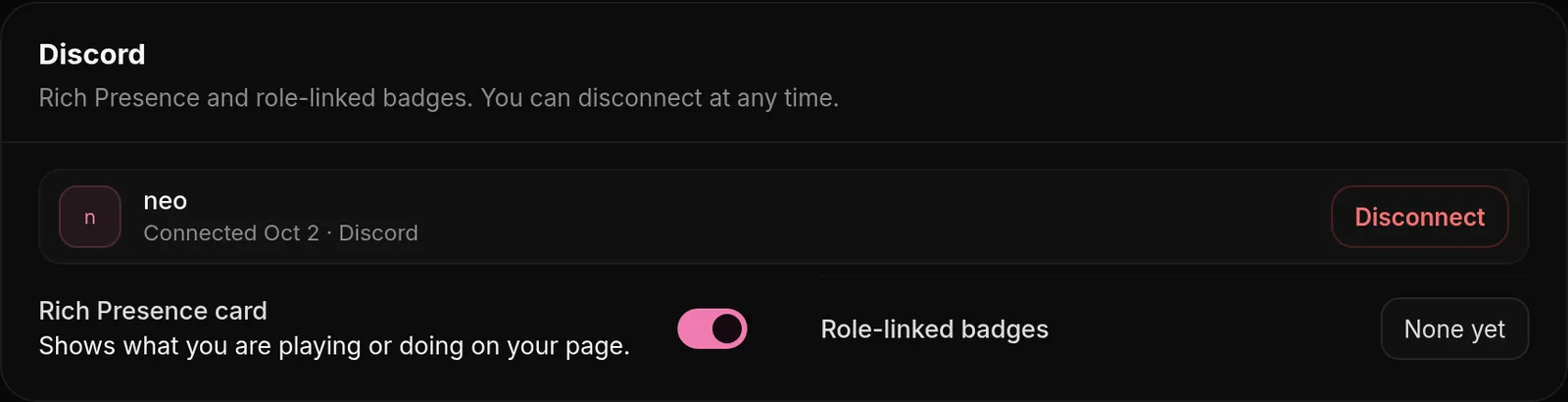
- Open Settings, Connections.
- Click the button to connect Discord and allow access on the Discord page.
- You are sent back to puh.gg. Your Discord account is now linked.
What connecting unlocks
- Rich Presence card: shows what you are playing or doing on your page. Switch it with Show Rich Presence.
- Roles and badges: your purchases give you roles on our server, and server roles give you badges. See Your Discord roles and badges.
- Discord avatar: use your Discord picture and decoration on your page, see Profile picture and banner.
- Giveaways on our server, see Giveaways.
- Your tickets: see the tickets you opened on our server on the Support page.
Nothing is ever posted to Discord on your behalf. You can disconnect at any time on the same page.
Disconnect or switch accounts
Click Disconnect under Settings, Connections. Roles that come from your puh.gg account are removed on our server with the next sync, and your page goes back to your own avatar. To link another Discord account, disconnect first and connect again while signed in to the other account on Discord.
One Discord account per puh.gg account. A Discord account can only be linked to one puh.gg account at a time.
Was this helpful?Updated Oct 22, 2026