 puh.gg
Social links
Add the round link buttons on your card, put them in order and copy-only links like a Discord name.
Links → Your links
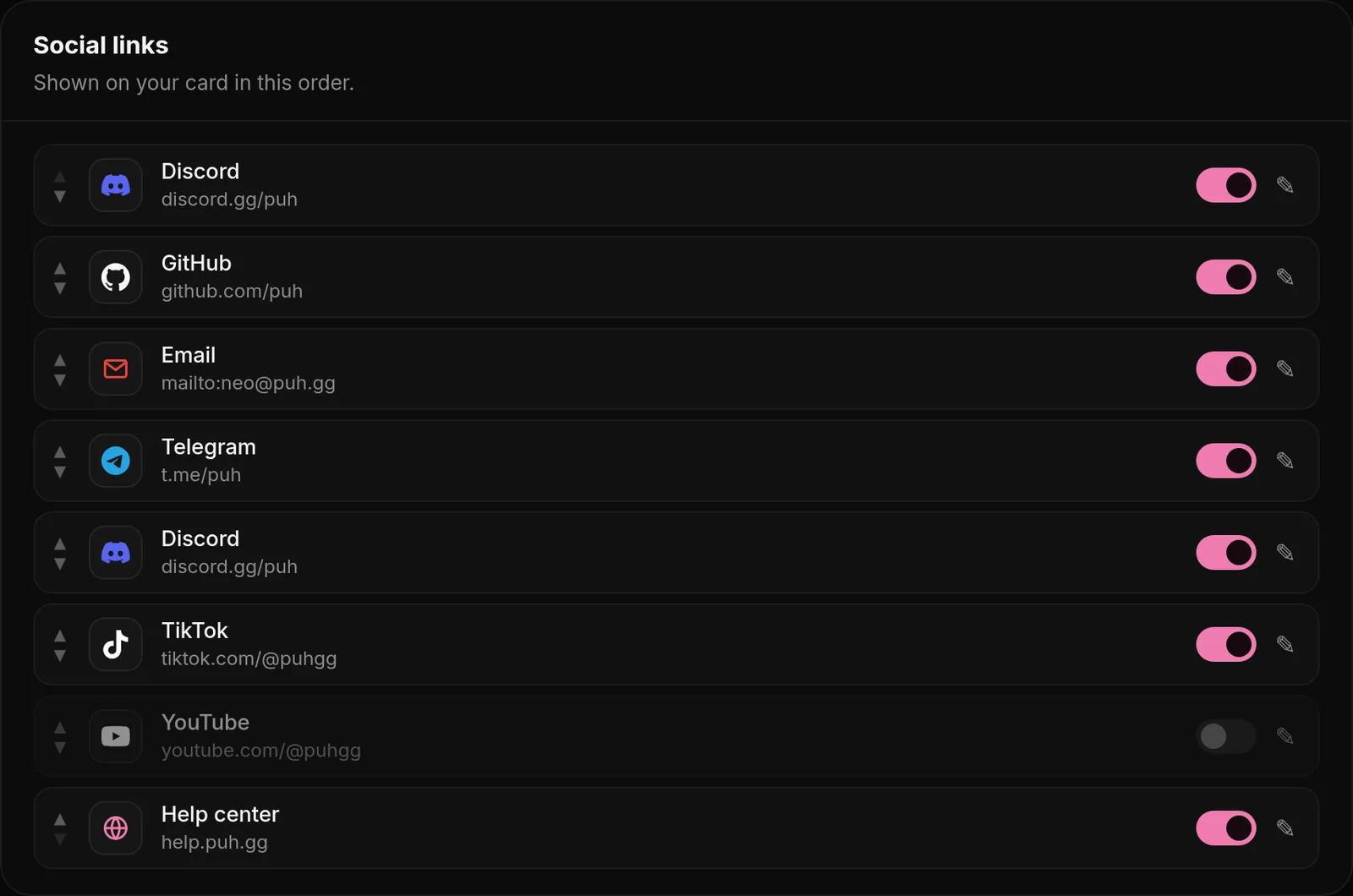
- Open Links in the dashboard menu.
- Under Add a link, search for the platform and pick it.
- Paste your address, for example
https://instagram.com/yourname, and add it. It shows up under Social links.
Each link shows as an icon on your card. The order in the list is the order on your page; move links with the arrows or by dragging.
Links that copy instead of open
Some platforms have no web address for a profile, for example a Discord username. Type the name instead of a link. Visitors who click the icon get it copied to their clipboard.
How the icons look
Color, size and style of the icons are on the same page under Icon look. See Link icons and badges. With the Links layout, every link becomes a big button with its name.
Clicks on your links are counted in Analytics. Each visitor counts once per link and day.
Platforms you can add
Twitter / X, Instagram, TikTok, YouTube, Twitch, Kick, Discord, Telegram, Snapchat, Threads, Bluesky, Facebook, Reddit, Pinterest, LinkedIn, VK, Signal, Spotify, Apple Music, SoundCloud, Last.fm, Chartmetric, GitHub, GitLab, npm, CurseForge, Steam, Roblox, PlayStation, Xbox, Vimeo, PayPal, Cash App, Buy Me a Coffee, Ko-fi, Patreon, Throne, OnlyFans, Email and Website.
Crypto wallets work too: Bitcoin, Ethereum, Litecoin, Solana, Ripple (XRP) and Monero. Paste your wallet address; visitors who click the icon get it copied.
Change or remove a link
Use the arrows to move a link and the bin to remove it. To change an address, remove the link and add it again with the new address.